2.5 Confirm Connected and Calibrated on Maestro
After completing the restart and Verify test in 2.4 Test calibration restoration and Verify on the controller, check each rig on Maestro before moving on to live control, presets, and loops.
Check the connection on Maestro
Open Maestro’s Home screen and find the camera row for the rig you just verified. Check the camera name and controller model so you are checking the intended rig.
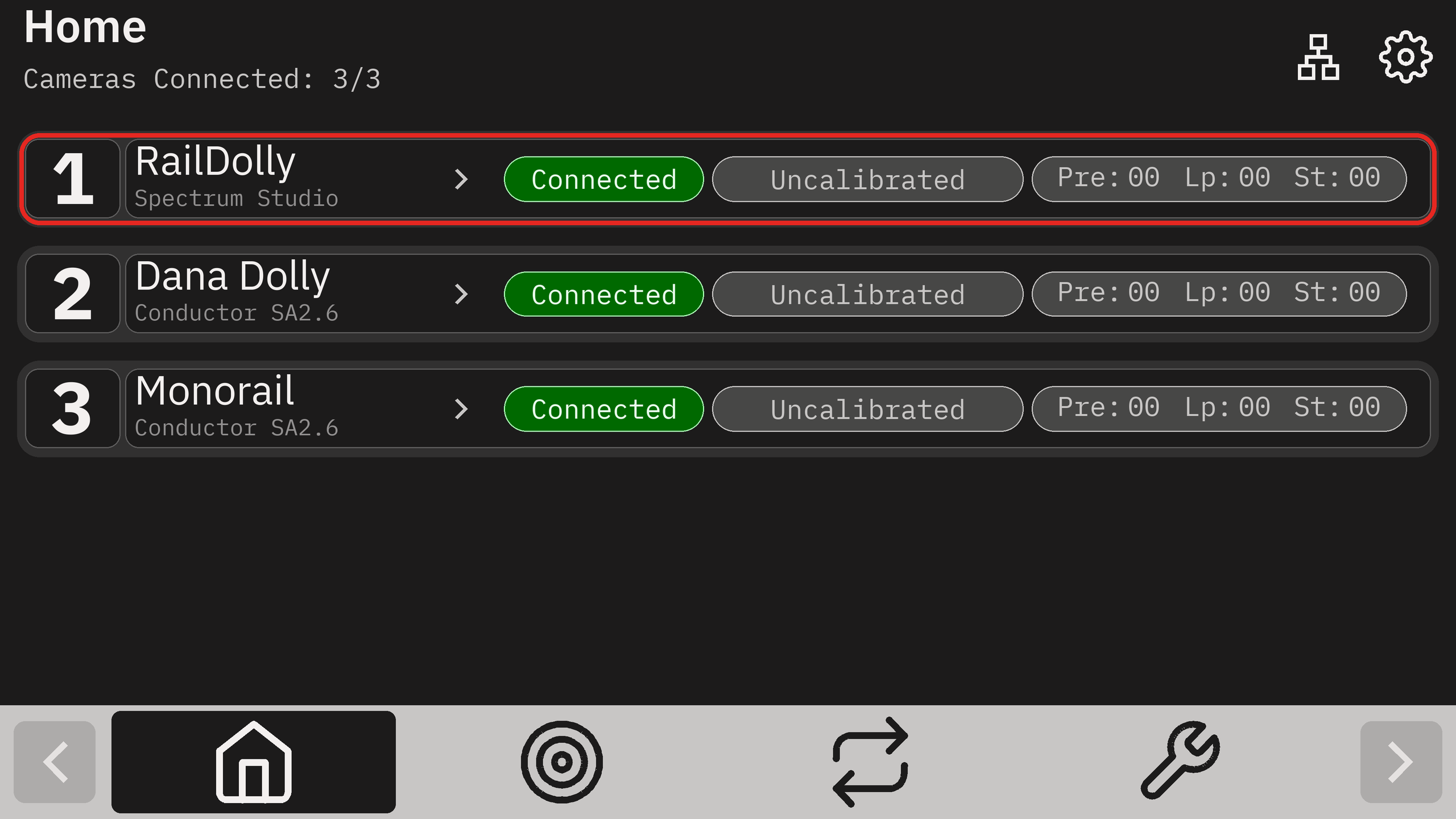
Wait for Connected. If the connection indicator shows Loading, let controller initialization finish. If it shows Center, release and center all joystick axes.
For Searching, Not Found, or Retry, follow 1.3 Confirm your motion controller connections.
Check calibration status
In the same camera row, check the calibration indicator beside the connection status. After completing restoration and confirming Verify on the motion controller, the expected pair is Connected and Calibrated.
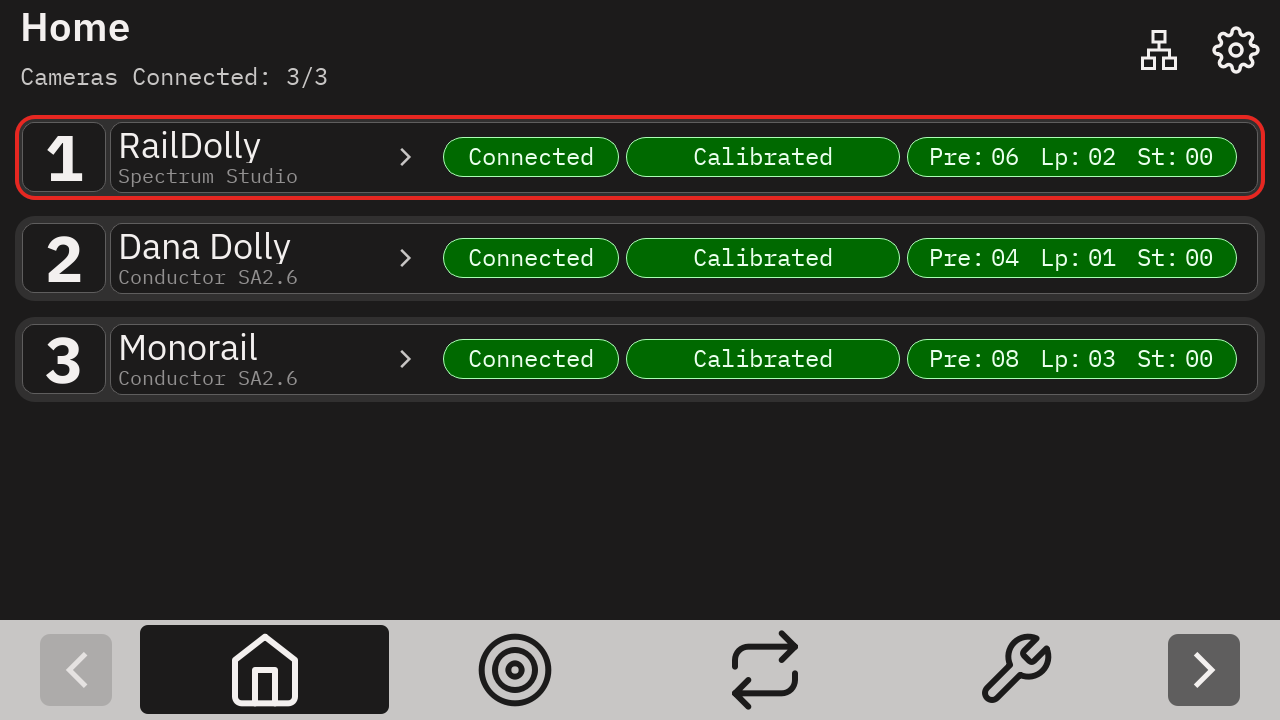
Check the counts to the right of Calibrated: Pre: is the number of loaded presets, Lp: is the number of loaded loops, and St: is the number of set stops.
For a returning session, confirm that the counts match the work previously saved on that controller before recalling a preset or starting a loop. On a first-time setup, Pre: 00 and Lp: 00 are expected until you create presets and loops; nonzero counts are not required to complete calibration.
Connected confirms communication with Maestro. Calibrated reports a valid position reference. The Maestro indicators must agree with the completed restoration and physical Verify check in section 2.4.
Calibration status dictionary
| Maestro shows | Meaning and next step |
|---|---|
 | The controller reports a valid position reference. Confirm that the saved Verify position and framing have been checked on this rig. |
 | A valid position reference is not available. Complete calibration in 2.3, or restore an existing calibration using 2.4. |
 | Restoration is waiting for the near-Home confirmation. Follow the positioning and confirmation steps in 2.4. |
 | Restoration is in progress. Keep the travel path clear and wait for the Verify prompt. |
 | The restored position still needs confirmation. Compare the saved Verify view on the motion controller, correct it if needed, and confirm as described in 2.4. |
 | Restoration has failed. Resolve the marker, sensor, or Home-position issue using 2.4 before retrying. |
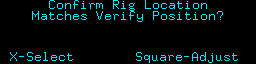
The controller’s Confirm Rig Location screen is the physical check behind the Maestro status. Confirm only when the rig position and camera framing match the saved Verify view.
If the rig is not ready
- Not connected: use the connection status dictionary in 1.3.
- Calibration was never completed or saved: follow the calibration steps in 2.3.
- Saved calibration exists, but restoration or Verify is incomplete: complete the restoration and Verify test in 2.4.
- Marker detection or restoration fails: check sensor operation in 2.1 and marker detection in 2.2, then retry restoration in 2.4.
- Verify framing does not match: follow the Verify correction steps in 2.4 before continuing.
Confirm each rig is ready
- The intended camera and motion controller are identified on Maestro.
- The controller shows Connected.
- Calibration has restored successfully.
- The rig matches its saved Verify position and framing, and Verify has been confirmed on the motion controller.
- Maestro shows Calibrated alongside Connected.
- For a returning session, the loaded preset and loop counts match the work previously saved on this controller.
Repeat these checks for each rig. Before trying live control, check that the rig is secure, physical end stops are in place, and the travel path and cables are clear.