1.2 Find and assign controllers in Maestro Platform
Connect the controllers in Maestro Platform
Platform is Maestro’s browser-based configurator.
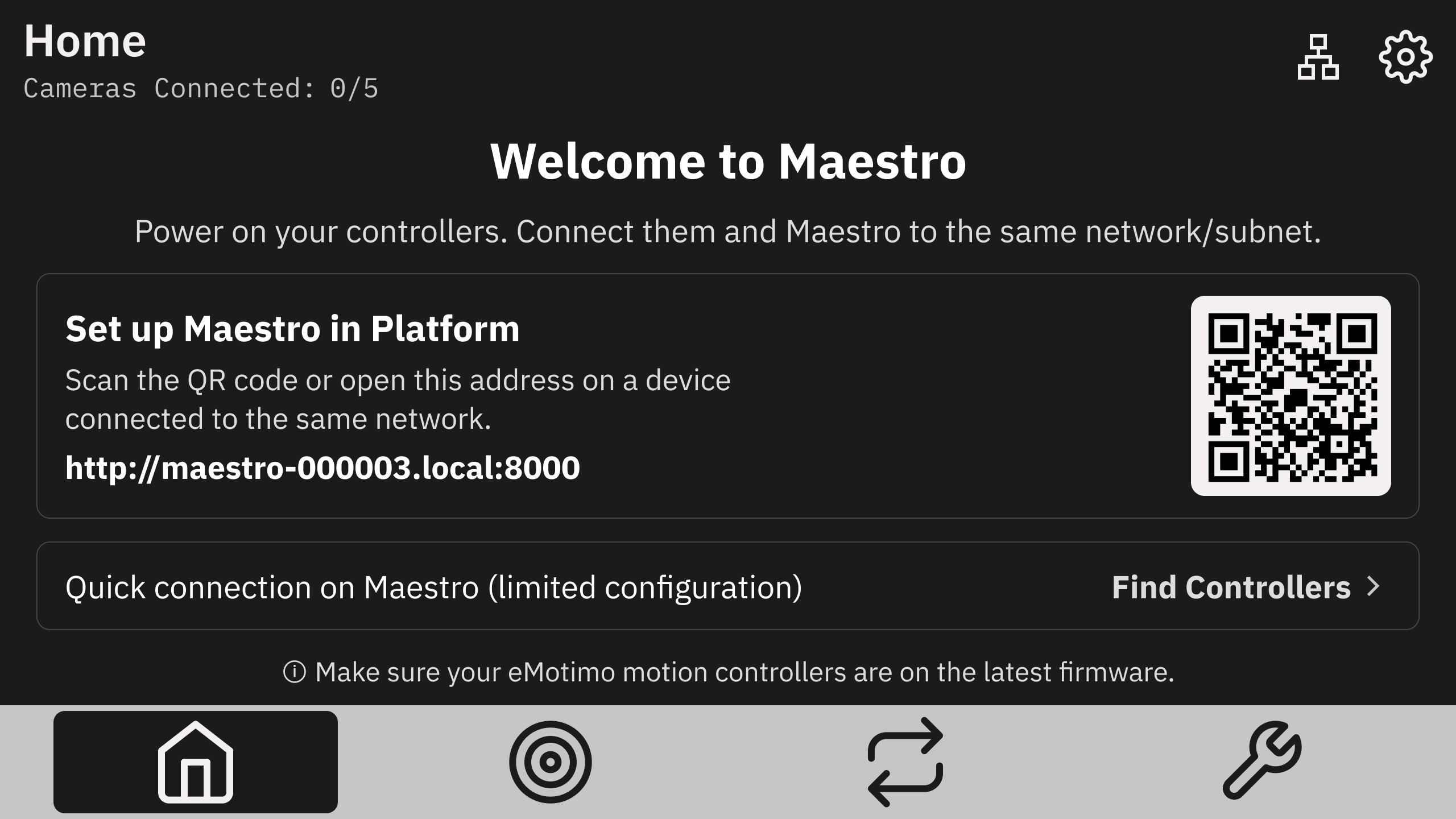
- On Maestro’s Home screen, find Set up Maestro in Platform.
- From a phone, tablet, or computer on the same network, scan the QR code or enter the address displayed on your Maestro in a web browser. Use the address displayed on your own Maestro; the screenshot below is an example.
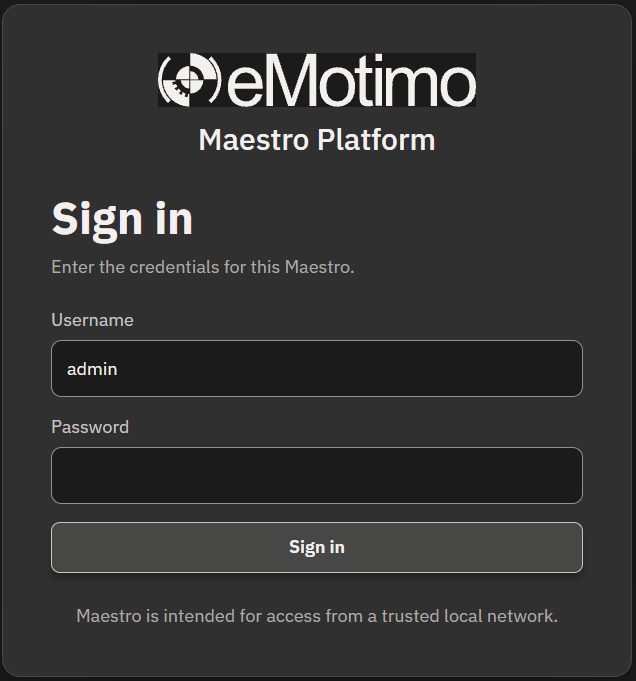
- Sign in using your Platform credentials.
note
The default username is admin and the default password is eMotimo.
- Open Controllers and select Auto Detect on the right side of the page.
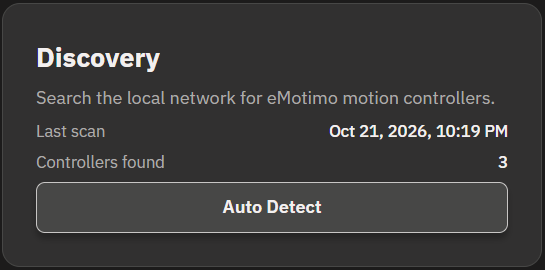
- Allow discovery and startup to finish. With Maestro and the controllers on the same subnet, Maestro should discover your Conductor or Spectrum Studio and connect automatically.
- Confirm that every intended controller is present. If an endpoint has been assigned, check that its IP address and port match that controller’s network configuration.
Reorder and rename controllers
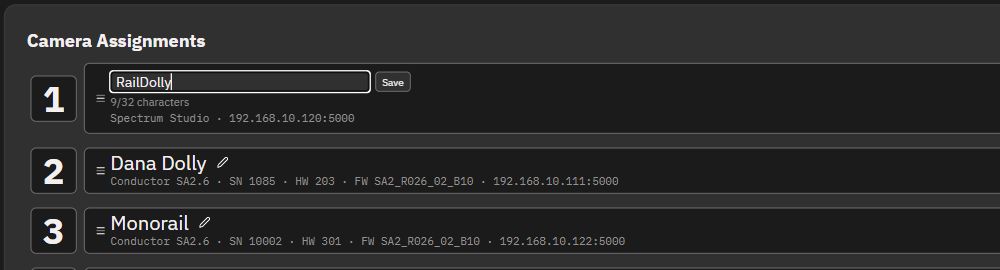
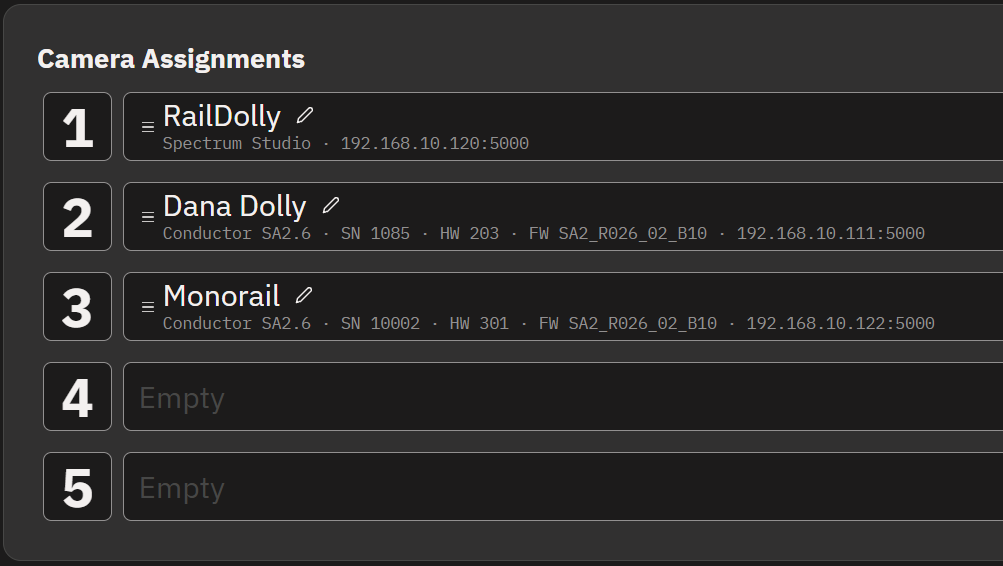
On the Controllers page, use Camera Assignments to arrange your controllers and give them recognizable names.
Reorder controllers
Drag the handle to the left of a controller’s name and drop the controller into the numbered slot you want.
Rename controllers
Select the pencil icon next to a controller’s name, enter the new name, and select Save. Use a name that helps you identify the rig.